%201.svg)





How Does Shopify Help with Inventory Management

Shopify comes with its own built-in inventory management tools to help you avoid overselling or making manual updates after every sale, so you can:
- Track stock levels
- Monitor inventory locations
- Get automatic updates as inventory moves
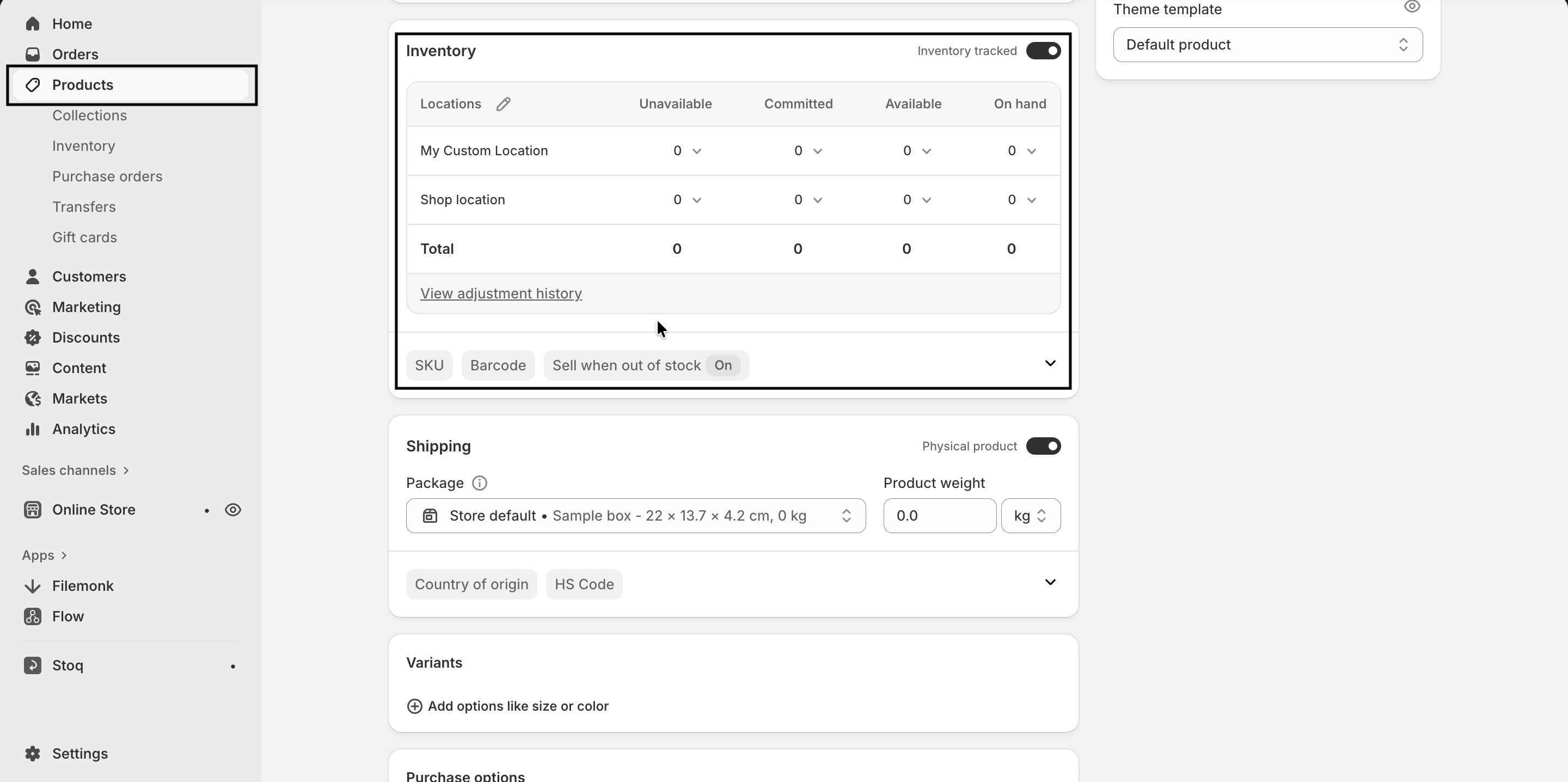
To use Shopify inventory management, you simply need to open the Inventory page in the backend of Shopify. Here, you can see what you currently have on hand and pull up a full historical inventory count for products and their variants.
Here is what else you can do with Shopify.
Stock Tracking and Bulk Editing
Shopify inventory management works by presenting you with two figures for all your items, which are:
- On-hand quantity — This is the total physical stock you currently have stored somewhere
- Available quantity — This is the amount of stock that you have left over when some has already been committed to a sales order
If you’re a Shopify merchant managing a high volume of SKUs, the platform does come with bulk editing tools, so you can update the quantities for multiple products in one go.
Multi-Location and Multi-Channel Inventory
The Shopify inventory management features give you the tools to manage stock across all your different locations, so you can see the count levels at your fingertips:
- Warehouses
- Retail storefronts
- Dropshipping apps
If inventory is moving faster at one location than you anticipated, you can easily perform a stock transfer between your locations and track shipments without using a different tool or spreadsheet.
And when sales start to happen, whether online or at a physical location via point of sale, your inventory levels at the relevant location will automatically update — all centralized, so you don't have to look between locations to make sure everything is correct.
Inventory Reports and Analytics
Shopify not only helps you with inventory management but can also generate monthly inventory reports, providing status updates on how stock levels have changed month over month.
It’s possible to get a few different types of reports with Shopify, all extremely useful for analyzing inventory turnover rates and stock health, including reports such as:
- Average inventory sold per day
- Percent of inventory sold
- ABC analysis by product
- Sell-through rate by product
- Days of inventory remaining
Low Stock Alerts and Automation
Unfortunately, Shopify inventory management doesn’t include reorder point notifications built into the system — but there are workarounds to get this essential feature.
One option is to get Shopify Flow, a free, no-code e-commerce automation platform created by Shopify that gives you the tools to automate repetitive, day-to-day tasks (such as creating safety stock thresholds). The second option is to check the Shopify App Store and look for a tool built specifically for inventory management that comes pre-built with reorder points, such as the Shopify integration Digit.
Setting Up Inventory Tracking in Shopify

To get the most out of Shopify's inventory management features, you’ll need to enable inventory tracking for each item so the platform can start monitoring and adjusting stock levels automatically.
To enable this feature, you’ll need to open the product page. Once it’s enabled, Shopify will begin recording every change to inventory levels, while also keeping an adjustment history available for up to 180 days.
Step-by-Step Guide to Enabling Track Quantity
To turn on tracking for a product:
- Log in to the Shopify admin and go to Products.
- Click a product that you want to start tracking.
- Note: If that product has variants and you want to track them, you'll need to select the specific variants.
- In the Inventory section, check the box for Track quantity.
- Enter the number of units you currently have in stock in the Available field.
- Click Save.
As soon as you click Save, Shopify will automatically start reducing the available quantity as orders start to pour in. And if you don't want to enable tracking individually for each product, you can use the bulk-edit option instead from the product page.
Selling Products That Are Out of Stock
To avoid overselling, the Shopify inventory management system, with tracking enabled, automatically makes products unavailable once the quantity hits zero.
If you want to sell any products at this point, you will need to enable this by:
- Opening the Inventory section of a product.
- Selecting the Sell when out of stock option.
With this option enabled, that stock (even though the system reads zero) becomes available to sell again.
Note: This setting isn’t available for Shopify POS. Instead, you and your staff will always be able to sell something even if the system shows that it’s not in stock, but to complete the order, Shopify will display a warning about the inventory levels.
Although the following sections do fall under the topic of setting up inventory tracking, because managing multiple inventory locations is a beast in and of itself, we’re going to pivot more toward setting up multiple locations and explaining how it works.
Setting Up Multiple Locations
To enable the Shopify inventory management system to track inventory across all your different locations, you will need to make sure the locations are saved on the platform, and to do this you have to:
- Go to Settings and open Locations.
- Add the additional address or location.
- Once the location exists, assign inventory to it directly from the product's Inventory section.
If you’re already using a third-party app to manage inventory at your other locations, Shopify will automatically tie the inventory to the location created in the third-party app (rather than updating the location manually). What this means for you is that when you look at your different locations, you won't see an address, but the name of the app.
If this isn't ideal for you, it's not permanent — you can reassign the product to one of your existing locations directly from the product's Inventory section.
Activating Products and Assigning Stock
Now that you have created a new location, you’ll quickly learn that inventory at this location starts at zero, as existing products you have stocked aren’t automatically assigned to the location.
To start keeping inventory at a location, the products must be activated and assigned a quantity before order fulfillment can begin. And there are multiple ways in which you can do this:
- Open a Product page, select Edit locations in the Inventory section, then activate the product at the new location and set its quantity.
- If you plan to sell multiple SKUs at this location, you can use the bulk editor or even import an inventory CSV file (if you’re using spreadsheets or another tool).
- With the products activated at the location, you can perform a stock transfer from one location to another or redirect purchase orders (POs) to the new location.
If you don’t activate the product at the new location, but inventory is manually recorded at that location, Shopify inventory management will simply display a dash instead of a number — so it’s important to activate to avoid losing track of your actual inventory levels.
Order Routing Across Locations
So, let’s say you have two fulfillment points, one on the East Coast and one on the West Coast. If a customer in Los Angeles orders a product from you, Shopify will automatically deduct stock levels based on the order quantity from your West Coast operations (and the same would happen on the other side of the country if someone in New York ordered something).
Disadvantages of Shopify's Native Inventory Management
Shopify's built-in inventory tools work well for straightforward, single-location stores, but a number of structural gaps become apparent as a business adds sales channels, warehouses, or more complex product lines.
These limitations aren't bugs so much as boundaries of what the native system was designed to do.
1. Limited Forecasting and Reorder Automation
Shopify doesn't project future stock needs based on sales velocity, seasonality, or supplier lead time, and it has no automatic reorder point calculation.
Merchants set a single low-stock threshold manually rather than having it adjust based on demand patterns or desired safety stock, which leaves restocking decisions largely to manual judgment rather than data.
2. Limited Financial Metrics
Shopify shows a month-end inventory value snapshot, but it doesn't calculate cost of goods sold, profit margins, or support different costing methods like FIFO or weighted average — figures that matter for accounting and pricing decisions.
3. Basic, Plan-Gated ABC Analysis
Shopify does provide a native ABC analysis by product report that groups items into A, B, and C tiers by revenue contribution, but it's a static, backward-looking snapshot rather than a tool built into day-to-day purchasing decisions, and stores on the Basic or Lite plan need a separate reporting app to access it at all.
4. No Bill of Materials or Manufacturing Support
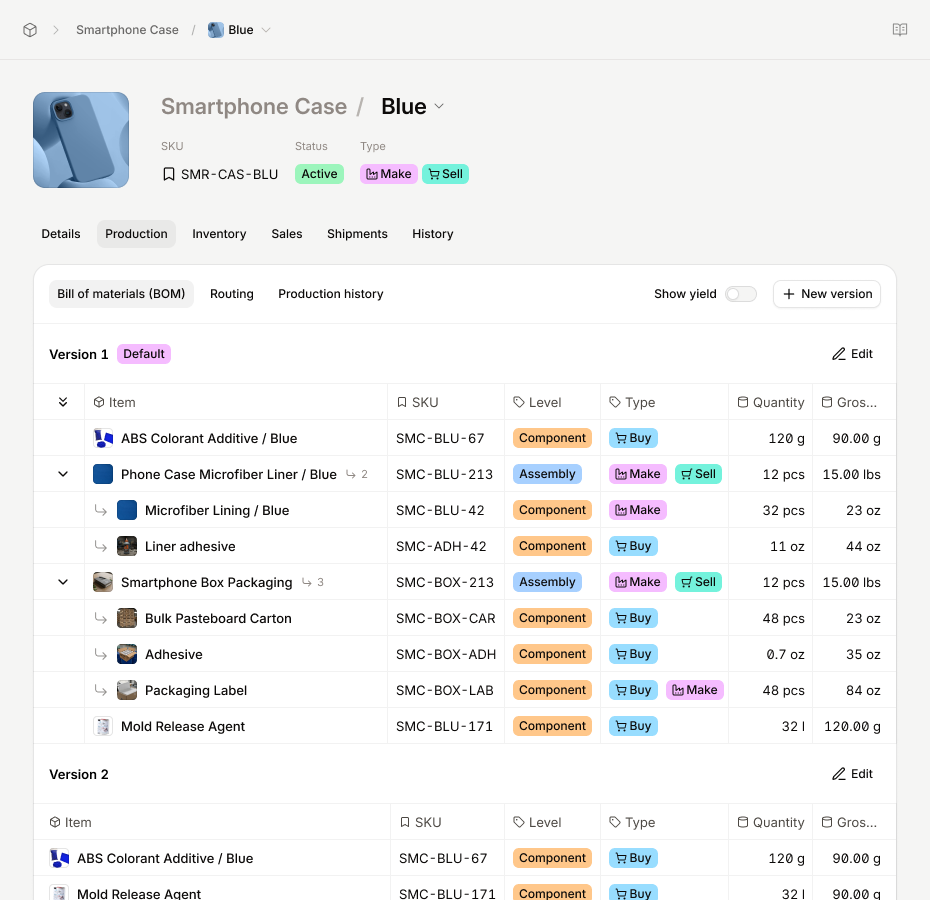
Shopify has no native bill of materials or way to link a finished or bundled product to the components or raw materials that make it up, so it can't automatically deduct component stock when that item sells.
Bundles, kits, and manufactured products all have to be tracked as flat, standalone SKUs, which creates a disconnect between what's actually on the shelf and what the finished product listing shows as available.
5. No Raw Material or Component Tracking
Shopify tracks finished, sellable products, but it has no native concept of raw materials or components separate from finished goods.
Businesses that manufacture what they sell can't view raw material stock levels, convert raw materials into finished units within Shopify, or calculate how much of a given component was consumed in production — all functions a dedicated manufacturing or inventory system handles.
6. Limited Batch and Lot Traceability
Shopify doesn't support tracking inventory by batch or lot number natively.
For businesses that need to trace a specific production run (for recalls, expiration dates, or quality control), this matters, since without batch-level visibility, there's no way to connect a stock issue back to a particular manufacturing date or raw material shipment through Shopify alone.
7. Sync Delays Causing Overselling
Real-time inventory syncing across external marketplaces such as Amazon, TikTok Shop, or a POS system isn't instantaneous.
If two orders for the last unit of a product come in through different channels within moments of each other, both can be accepted before Shopify's backend reconciles the count.
8. Ghost Stock and Phantom Sold-Out Errors
Inventory can physically exist but show as zero in Shopify because a connected app has overridden the count, the stock wasn't correctly linked to a location, or it's still tied up in an unfulfilled order.
This is effectively the reverse of overselling — available stock goes invisible instead of being oversold.
9. Limited Warehouse Workflows
Native tools lack deep bin-location tracking and pick-and-pack routing, which limits how efficiently larger operations can manage physical fulfillment across a warehouse.
10. Tracking Must Be Manually Enabled Per Product
If the Track quantity toggle is left off (something that happens easily during product duplication or CSV imports), Shopify won't deduct stock after a sale, and the product can keep selling long after it's actually gone.
11. Duplicate or Misconfigured SKUs
Shopify's tracking depends on SKUs being unique across products and variants. When they aren't, stock gets deducted from the wrong item, and reports become unreliable.
12. Refunds and Returns Don't Always Restock Automatically
Refunds don't always restock inventory automatically. This is particularly common when the return process runs through a third-party app or is handled manually, leaving inventory unaccounted for even though the item is physically back in stock.
13. Broad Permissions Increase Manual Error Risk
When many team members have unrestricted access to adjust stock counts directly, entry mistakes are common and often go uncaught until a physical count turns up a discrepancy.
Types of Inventory Tools for Shopify Merchants
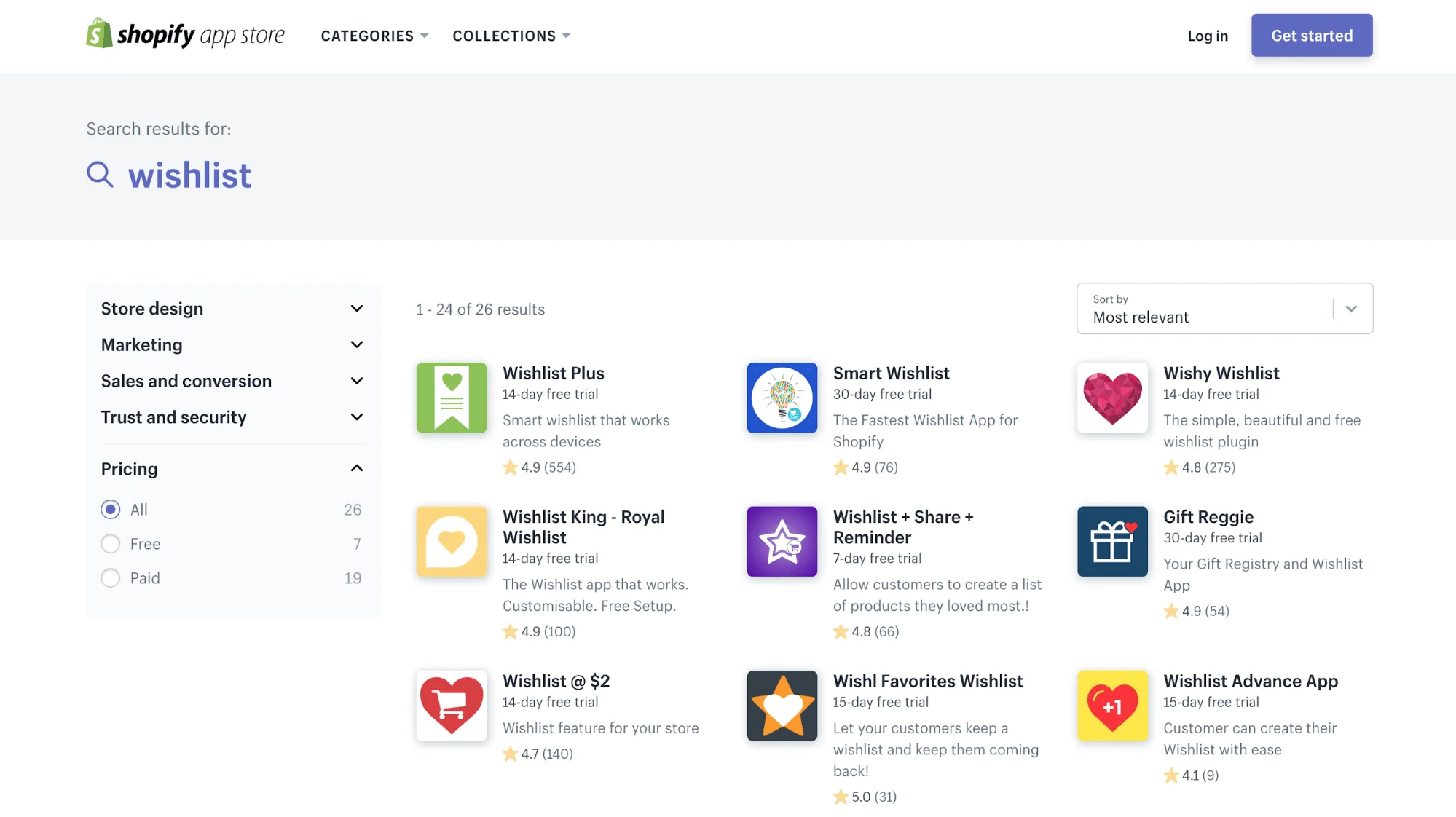
The gaps in Shopify's native system have created a market of purpose-built apps, each addressing a specific piece of the problem rather than replacing Shopify's core inventory tracking outright.
These tools generally fall into a handful of categories, and most merchants end up combining two or three of them depending on which limitations affect their business most.
Spreadsheet Sync Tools
These are lightweight apps that connect a Shopify store directly to a spreadsheet, updating product and pricing data in real time rather than requiring manual CSV exports and imports.
They're aimed at merchants who already manage inventory in a spreadsheet-based workflow and want that process automated rather than replaced, keeping stock counts current without someone manually re-uploading a file every time something changes.
Multi-Channel Sync Tools
These apps address the sync delay and overselling risk that comes with selling across more than one channel.
They sit between Shopify and other marketplaces or a POS system, keeping stock counts aligned across every channel a product is listed on, so a sale in one place is reflected everywhere else within moments rather than after a delay. This category exists specifically to close the gap where two near-simultaneous orders across different channels can both go through for the same last unit.
Bundle and Kit Management Tools
These tools add the bill-of-materials functionality Shopify lacks natively, linking a bundled or finished product to the individual components or raw materials that make it up.
When a bundle sells, the app deducts stock from each underlying component automatically, rather than requiring the bundle to be tracked as its own flat SKU disconnected from what's actually in stock.
Demand Forecasting Tools
These apps analyze historical sales data, seasonality, and supplier lead times to predict future stock needs, filling the forecasting gap in Shopify's native reporting.
Many also automate the reorder process itself, generating purchase orders or alerts once a product's projected demand crosses a set threshold, rather than leaving reorder timing to manual judgment.
Warehouse Management Systems
These are the most comprehensive tools in the category, built for merchants managing multiple physical locations, high SKU counts, or complex fulfillment operations.
They typically include barcode scanning, bin-level location tracking, and pick-and-pack routing across warehouses — the deeper logistics functionality that Shopify's native admin doesn't support. Because of their scope, these platforms tend to represent a bigger operational shift than the other tool categories, often replacing several manual processes at once rather than patching a single gap.
So, when is it time to consider a third-party inventory system?
Shopify's native tools handle basic to moderately complex setups well, but brands scaling to high SKU counts or managing more complex supply chains often outgrow the built-in tools and integrate a dedicated inventory management system such as Digit.
Using Digit for Shopify Inventory Management
.jpg)
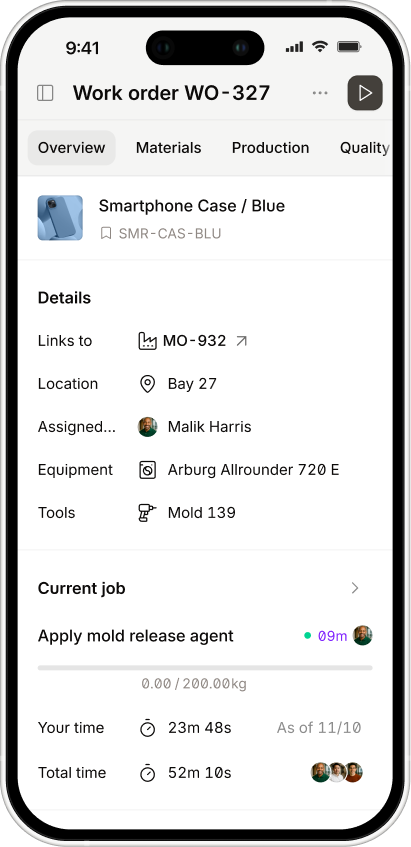
Digit is built specifically to close the manufacturing-related gaps in Shopify's native inventory system.
Where Shopify has no way to link a finished product to its components, Digit supports multi-level bills of materials and routings, so a sale automatically consumes the correct raw materials rather than deducting from a flat, standalone SKU. It also tracks raw material stock separately from finished goods (visibility Shopify doesn't offer at all) and supports batch and serial tracking for businesses that need to trace a production run back to a specific date or material shipment.
On the forecasting side, Digit ties production planning and scheduling directly to demand generated from Shopify sales, rather than leaving reorder timing to manual judgment. Purchase orders and manufacturing orders are created and managed in the same system, providing shop-floor visibility and job costing that Shopify's native reports don't.
The sync between the two platforms runs both ways:
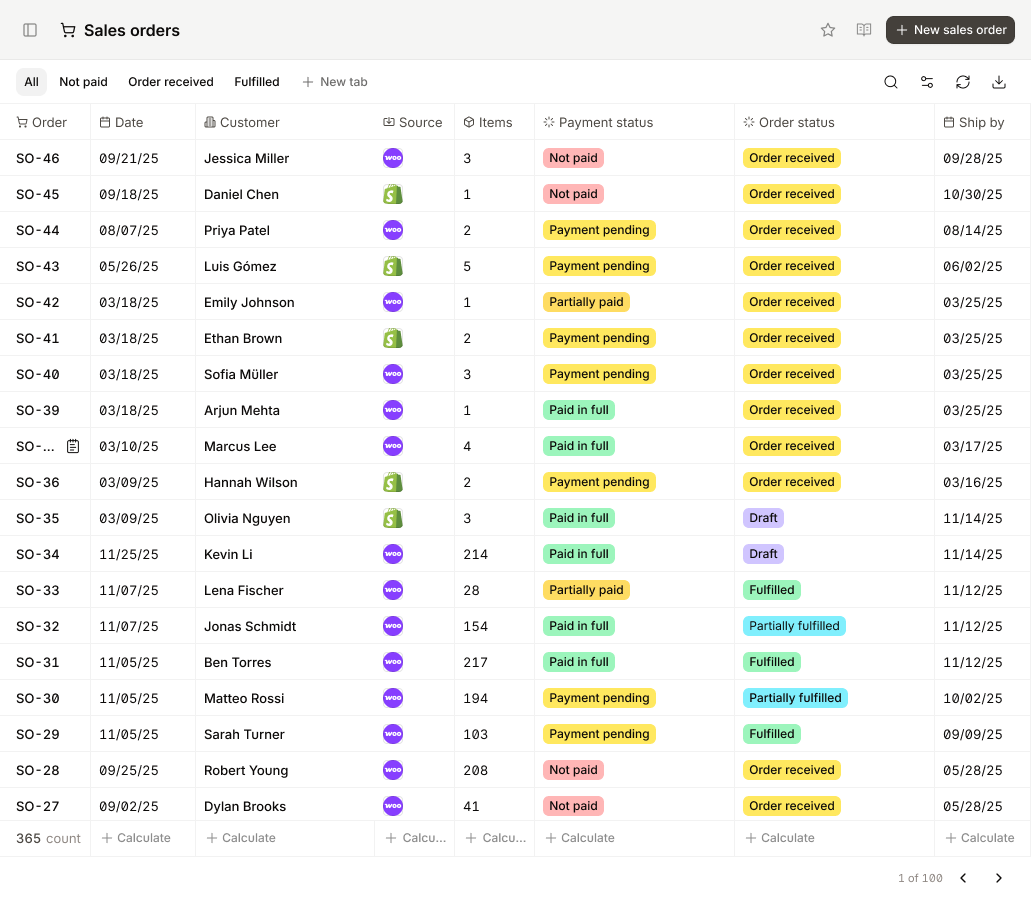
- New sales orders are imported from Shopify to Digit about every 10 minutes
- Once a shipment is marked as shipped in Digit, that fulfillment status syncs back to Shopify automatically
Stock level changes in Digit can also push back to Shopify, keeping quantities aligned across both systems without manual re-entry. Shopify remains the storefront throughout, while Digit becomes the system of record for fulfillment and warehouse operations.
Want to see for yourself? Book a call with one of our Shopify inventory management experts, and they will take you for a tour of Digit and show you firsthand how it’ll take your e-commerce game to the next level.




.jpg)