


What Is Raw Materials Inventory in Manufacturing?

In manufacturing, a business needs unprocessed materials and components to build a product — these are referred to as raw materials.
For production to even begin, it is necessary to have these raw materials available, ready for when a manufacturing order is generated, and these items fall under one of two categories:
- Direct materials — these are the items that will become part of the finished product (steel for automobiles, wood for furniture, fabric for clothing, and plastic for electronics)
- Indirect materials — these are the items that support the production process without ending up in the final product (lubricants, cleaning supplies, safety gear, and disposable tools)
The forms raw materials can take vary and ultimately depend on the industry the company operates in. For example, a business that builds custom gaming computers will manage many subassemblies, while a company that relies on oil or plastics will deal with raw materials or chemicals. Regardless of how the raw materials look, they all usually have one thing in common: the manufacturer isn’t involved in their extraction and purchases them from vendors, meaning that raw materials inventory is particularly sensitive to market and environmental conditions.
But if everything goes smoothly and you get your raw materials, they can then enter production, becoming WIP inventory until production is finished and they become a final product ready for sale.
Tracking these items as they move through different inventory types is an essential component of supply chain and inventory management, because you need to keep inventory levels in balance so you’re not losing revenue or missing out on orders.
And since manufacturers need to keep on top of their financials, many turn to QuickBooks to handle their inventory management and accounting. But, how does QuickBooks' raw material inventory management work?
How QuickBooks Tracks Raw Materials: Online vs. Desktop

As you may already know, QuickBooks comes in two versions (and those versions have versions, but we won’t deep-dive into that for now):
- QuickBooks Online (QBO)
- QuickBooks Desktop (QBD)
Both work differently, and understanding this is important if you’re going to rely on QuickBooks to track raw material inventory.
QuickBooks Online Raw Material Management
QuickBooks Online is built to suit as many business use cases as possible and is better suited for small businesses or retailers with relatively straightforward inventory needs.
You can use QBO for tracking raw materials under Inventory Asset accounts. So, when a bill is created, inventory level quantities are updated, and the Cost of Goods Sold (COGS) is calculated once the finished product has been sold. The downside to using QBO for tracking raw materials is that the online version lacks a native Build Assemblies feature, which means you have no built-in way to create and manage your Bill of Materials within QBO, and you will need to find a BOM software to fill this gap.
There are workarounds to this, such as using Bundles to group your raw materials, but maintaining them takes a lot of effort, as you will need to manually adjust inventory levels.
QuickBooks Desktop Raw Material Management
QuickBooks Desktop, on the other hand, is built to support the more complex workflows of manufacturers (with some versions of QBD built to support specific industries).
QBD, unlike QBO, includes Build Assemblies functionality that gives you tools to manage BOMs for your products. And, with your BOMs properly configured, when you finish a production run, and your final products are created, QBD will automatically reduce raw material inventory levels and increase finished goods stock. QBD also comes in different tiers, so if you are managing inventory across multiple locations, you can track your inventory at each location, as well as get detailed reporting through tools like the Inventory Valuation Summary and Inventory Stock Status reports.
Setting Up Raw Materials as Inventory Items in QuickBooks
Depending on which version you choose, either QBO or QBD, each will need to be configured slightly differently.
And before you go in there and start creating items, remember that you need to correctly assign items to the correct inventory type:
- Raw materials aren’t sellable products, so the sales price and income account fields can be blank at the item level
- You only need to track direct inventory, and your indirect materials should be expensed rather than inventoried
With that out of the way, let’s get to it.
Setting up in QuickBooks Online
- Go to Sales (or Get Paid & Pay) and select Products and Services
- Click New and select Inventory
- Enter the material name and, if you haven't already, create a Raw Materials category to keep your inventory organized
- Enter the initial quantity on hand and the date
- Under purchasing information, enter the cost per unit and select the appropriate COGS account
- Leave the sales price and income account blank, then click Save and Close
Setting up in QuickBooks Desktop
- Go to Edit > Preferences > Items & Inventory > Company Preferences and confirm that inventory tracking is active
- Go to Lists > Item List, click the Item dropdown, and select New
- Set the item type to Inventory Part and enter the material name
- Set the unit of measure, especially useful when purchasing in bulk
- Assign the cost account, asset account, and leave the income account blank
- Click OK to save
And there you go! You have raw materials set up in QuickBooks. But, as we already mentioned, there are differences between the two versions, so now we will focus on QBD so you can understand how to set up the conversion of raw materials into finished goods in QBD.
Converting Raw Materials to Finished Goods in QuickBooks Desktop

You have your raw materials set up, your BOMs are configured, and the next step is to set up the software so you can start converting your materials, components, and subassemblies into finished goods.
To do this, we will need to access the Build Assemblies feature in QuickBooks Desktop Premier and Enterprise.
Running a Build Assembly
- Go to Inventory and select Build Assemblies
- Select the finished product you want to build from the Assembly Item dropdown
- QuickBooks will display the maximum quantity you can build based on current raw material stock (review this before proceeding)
- Enter the number of units you want to build
- Click Save and Close
With this now properly configured, QBD will automatically deduct the raw material items and add the corresponding quantity to your finished goods inventory every time production starts and finishes.
The Limitations of QuickBooks Raw Materials Inventory

It’s understandable that businesses go all-in with a tool like QuickBooks because it’s a fantastic tool for managing your financials, and comes with enough extras to potentially manage other aspects of your business.
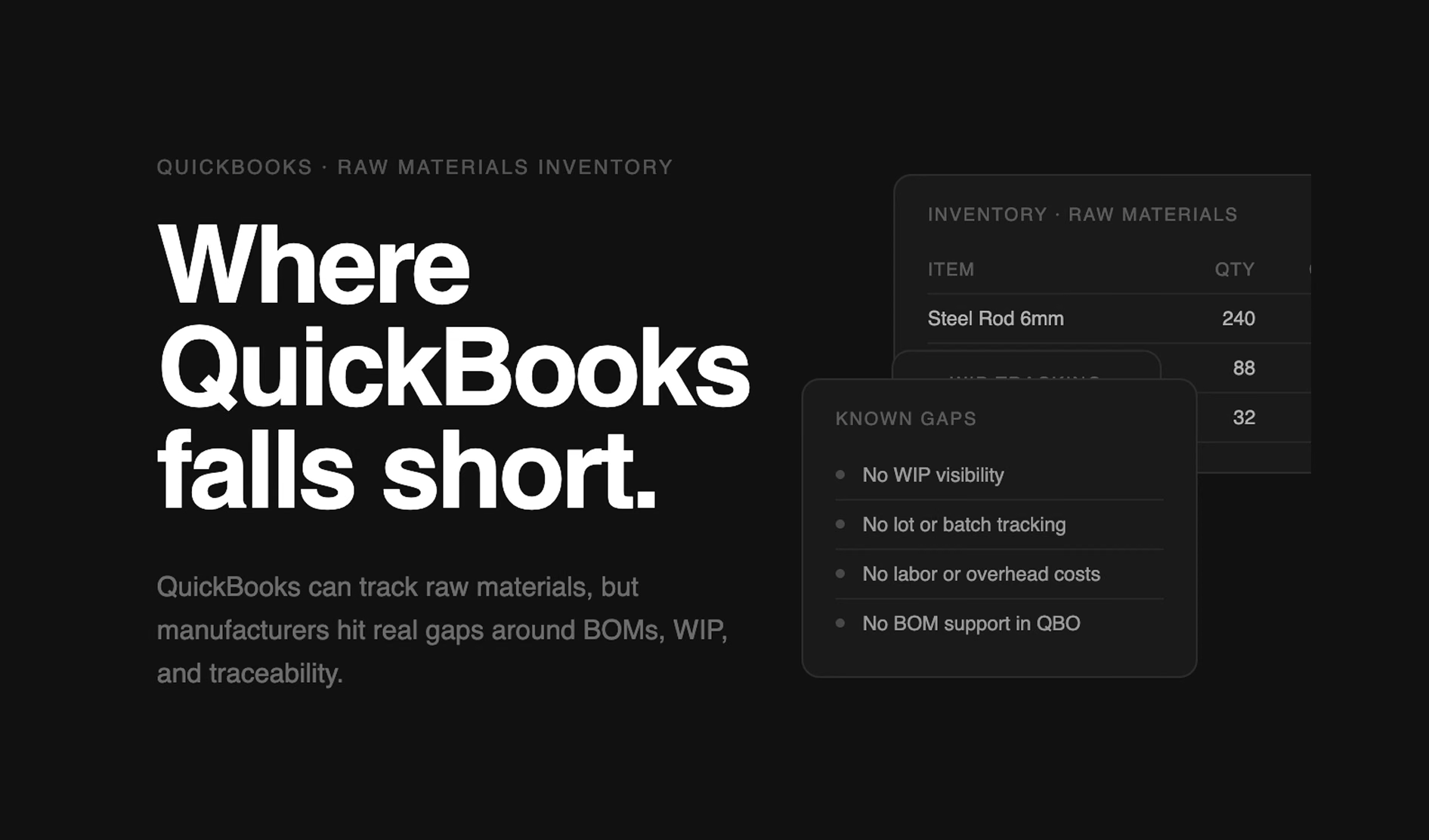
But manufacturing demands a lot in terms of inventory and production management, and the gaps that appear in almost all versions of QuickBooks will be noticeable enough to cause delays as production and manufacturing operations grow.
No reliable Work in Process tracking
Unless you're paying for the pricier versions of QBD Enterprise, QuickBooks isn't capable of tracking items currently in production.
What this means is that inventory values will be inaccurate during production runs, as there is no way to track partial builds or assign costs to products that haven’t been made yet. And even if you do decide to go with QBD Enterprise, the WIP inventory functionality is limited to inventory sites rather than offering true shop floor visibility or real-time production cost tracking.
Limited Bill of Materials functionality
As we have touched upon in this article already, BOM support isn’t available in QBO, and in the low-tiered QBD plans, you will need to manually remove raw materials and add finished goods when an assembly is completed.
Having to do manual workarounds for the lack of BOM features is time-consuming and opens up your business to data entry errors, since every entry must be input manually, which becomes more of a challenge if you’re managing multiple product variants. For example, a business with 20 product designs across 5 variants each would need to manually create and maintain 100 separate item groupings — making this simple process a full-time job in and of itself.
No labor or overhead absorption
Another thing that was mentioned in this article was how costs are tracked, and unfortunately, there are gaps in the costs that you can track, as QuickBooks excludes the following from calculating the cost of finished goods:
- Labor
- Freight
- Overhead costs, such as electricity or factory rent
The assembled item's cost reflects only the raw materials, so your inventory valuation and COGS figures will understate the true cost of production.
No lot, batch, or expiration tracking
QuickBooks cannot trace raw materials by lot number, batch, or expiration date.
For businesses in food and beverage, pharmaceuticals, or any regulated industry where traceability is a compliance requirement, this is a serious gap. If a raw material batch is found to be defective or unsafe, there is no way within QuickBooks to identify which finished goods it was used in.
Weak forecasting and procurement
Although you can set static reorder points with QuickBooks, you cannot forecast demand based on:
- Sales trends
- Seasonality
- Supplier lead times
So, managing raw materials inventory in QuickBooks comes with some pretty significant disadvantages for manufacturers. Then, why do so many businesses still decide to use it in their operations? It’s because QuickBooks works best when it is focused on managing your financials, and you integrate it with a tool that handles the production side.
What Proper Raw Materials Tracking Looks Like in an MRP System
.jpeg)
With a QBO integration or QBD integration, you can build a tech stack that can help you ensure that your financial, inventory, and production data are all aligned — usually with a tool such as a Material Requirements Planning (MRP) system.
An MRP is what you need to fill manufacturing gaps in QuickBooks, as it provides tools to manage your BOMs and automatically commit and track items as they move from raw materials to WIP and finished goods. Take, for example, Digit. You can use Digit to create and manage multi-level BOMs, as well as track alternate BOMs for your different product variants.
As for businesses operating in regulated industries, Digit gives you full end-to-end traceability, so regardless of where an item came from or where it ended up, you know exactly how it got there.
It can also help you manage all the other things you need to track in your manufacturing, that QuickBooks currently lacks, such as:
- Raw materials tracking (with full WIP visibility)
- BOM management
- Traceability
- Procurement automation
- Production costs tracking
Want to see for yourself? You can try chatting with Digit's free AI demo and go from struggling with QuickBooks raw materials inventory management to scaling your operations with all your important business data aligned.