

.jpg)
What Is WooCommerce Order Management System?
.jpg)
As the expression goes, “It does what it says on the tin!”
A WooCommerce order management system is the built-in dashboard and toolset used to track, process, and fulfill customer orders that come into your store. Order management via WooCommerce all happens in your store's dashboard, and you’ll be able to:
- Handle payment
- Update order statuses
- Perform inventory adjustments
- Manage shipping
- Communicate with customers
And in a nutshell, that's the 'what is WooCommerce order management' question answered. The next question to answer is how it works. So very quickly, here are the core functions of order management in WooCommerce, before we delve into how to set and use all these features.
Starting with:
Order Management
If you set up your online store with WooCommerce, what will happen is once a customer finishes a purchase, WooCommerce will automatically record the details of that order, so you can see:
- What products were ordered
- How many of those products were ordered
- The total price of the order
- Shipping details
- Payment information
At that point, the only thing left to do from your side is to have someone review the order details to verify that the payment has gone through before you begin to prepare the order for shipping.
Inventory Management
So, order management is sorted automatically, but what about inventory management? In this case, when an order is placed, WooCommerce automatically allocates available stock to the order, and updates inventory levels so your count accurately reflects how much inventory you have on hand.
Order Tracking
As the WooCommerce order moves through the supply chain, customers receive updates and shipment tracking details so they know when it has left your warehouse and when they can expect delivery.
Order Fulfillment
The moment the order is dispatched to the customer, the order is marked as Completed (keep in mind that this doesn’t mean that the customer has received it, it just means that the order has left your facilities).
Refunds and Returns
And continuing on from the previous point about orders leaving your warehouse, sometimes they are returned or (worse) lost on their way to the customer. In these instances, you can manage refund requests and returns using WooCommerce order management.
Communication
WooCommerce also comes with features that allow you to keep in touch with customers, so you don’t need to seek out a new CRM. You can keep customers updated about their orders via:
- Confirmation emails
- Tracking updates
- Direct customer support
Reporting and Analytics
Finally, and pretty important for understanding the financial health of your business, WooCommerce order management comes with built-in reporting tools to help you make better business decisions and improve your business strategy by gathering analytics on:
- Sales performance
- Order trends
- Popular products
And there you have it! All the features and functionality of WooCommerce order management. The rest of this article will focus on how to make use of all this and the downsides of putting all your eggs into one basket.
How to Manage the WooCommerce Order Process
Every order that is created in WooCommerce receives a unique ID (be that automatically via an online order or manually created by someone internally).
Once the order is saved to the WordPress database, you’ll have access to a bunch of tools that will allow you to:
- Track order statuses
- Edit order details
- Collect payments
- Protect customer data
- Test any processes before going live
So, buckle up, because we’re about to do a deep dive into the nitty-gritty of order management in WooCommerce.
The WooCommerce Order Status Flow
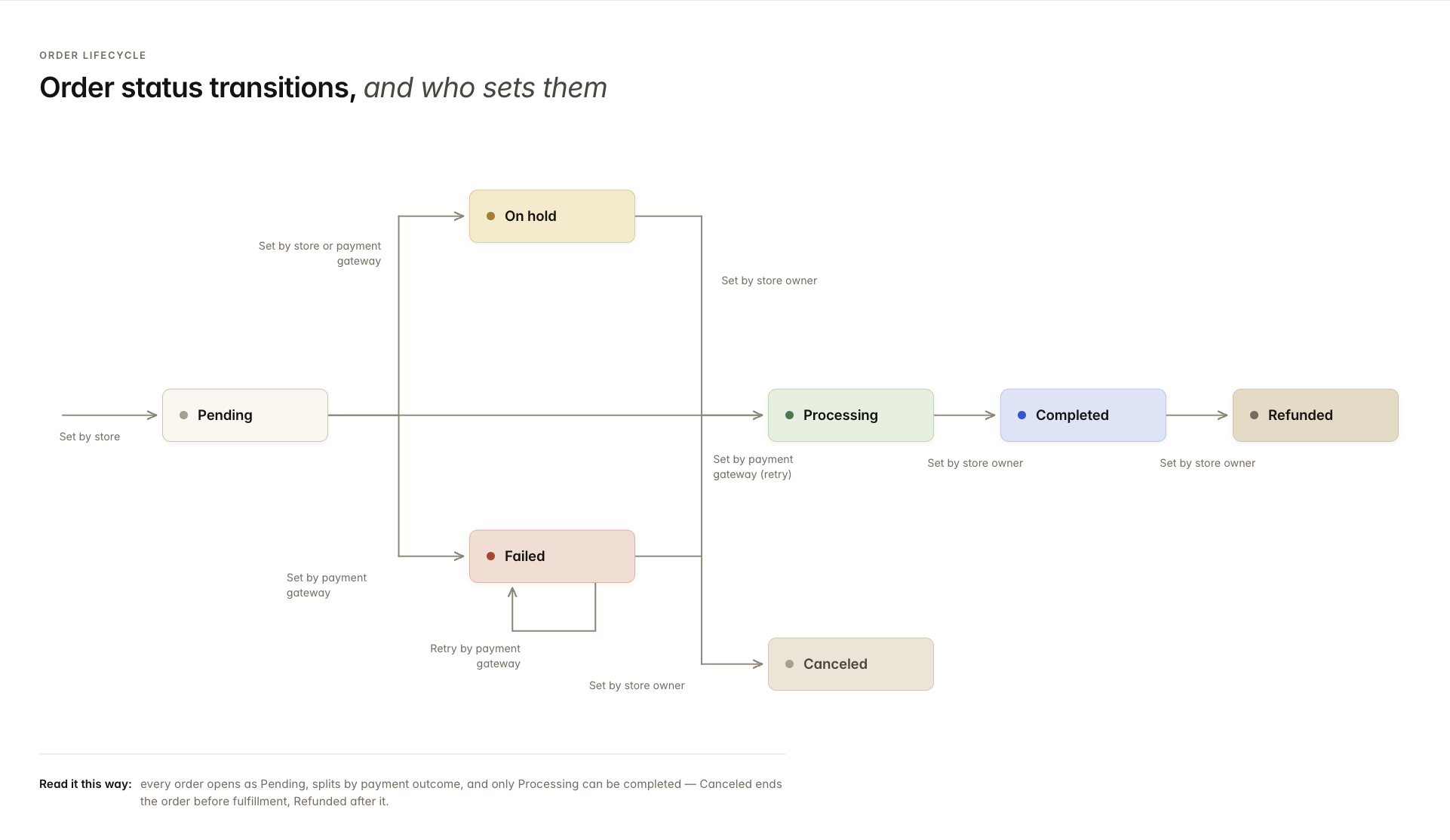
As we have already briefly mentioned, WooCommerce orders exist in different statuses that represent where an order sits in the order fulfillment pipeline. As an order moves through the pipeline, it will pass through several of these statuses.
- Pending payment — The order has been generated either automatically or manually, but the customer hasn’t paid yet. You will see this status during bank transfers, or you’ll use this if you have other manual payment methods.
- Failed — This status indicates that the payment for the order didn’t go through because it was declined, timed out, or blocked for another reason. If you see this, it may require manual intervention, or you may need to follow up with the customer to try the payment process again.
- Processing — The payment was received, and stock has been committed to the order. Now, a warehouse operator can pick and pack the order ready for shipment.
- On hold — Something has blocked the order from progressing, and this could be because the payment needs verification or stock is unavailable at the moment. Stock is automatically committed to an order, so if it’s negative, the order is stuck until inventory is replenished and levels updated.
- Completed — Congratulations! Nothing got in the way, and you have managed to ship the order to the customer.
- Canceled — Either by the customer or someone internally, the order was canceled. The items committed to the order have been released back into inventory.
- Refunded — Either fully or partially, the order was refunded by someone internally, and the stock levels were potentially updated based on the store settings.
Order statuses in the WooCommerce order management system are pretty linear, with the platform triggering the first Pending status. And from that point, statuses change based on manual updates, payments (or lack thereof), and inventory levels recorded in the system.
However, how your order statuses update depends on how you configure your store.
For example, you can set it up so that Pending orders that remain unpaid within a set timeframe (such as a few minutes) will automatically cancel if left unpaid, returning committed inventory back to stock to avoid tying up inventory to unpaid orders.
Another thing worth mentioning is that you can use WooCommerce Order Management to sell both digital and physical products, each with its own status flow.
If you’re selling physical goods, WooCommerce can only update an order status so far. Ultimately, you will need to manually change the order status to Complete once you have packed and shipped a product, as WooCommerce has no way of knowing whether you have dispatched the order. But for digital goods, the Processing status is skipped altogether, and items labeled as "Virtual" and "Downloadable" are marked as Complete once the payment has cleared.
Navigating to the Orders Screen in the WooCommerce Order Management System
You understand how the statuses work, so now you’ve set your store live, and the sales orders are flying in like no one's business.
Doing this is straightforward. You'll first start by logging into your WordPress account. Somewhere on the dashboard, you will see a section for WooCommerce:
WooCommerce > Orders
By selecting this tab, you will be able to see every order in the store, and be able to check:
- Order number
- Purchase date
- Current status
- Total amount
- Order source
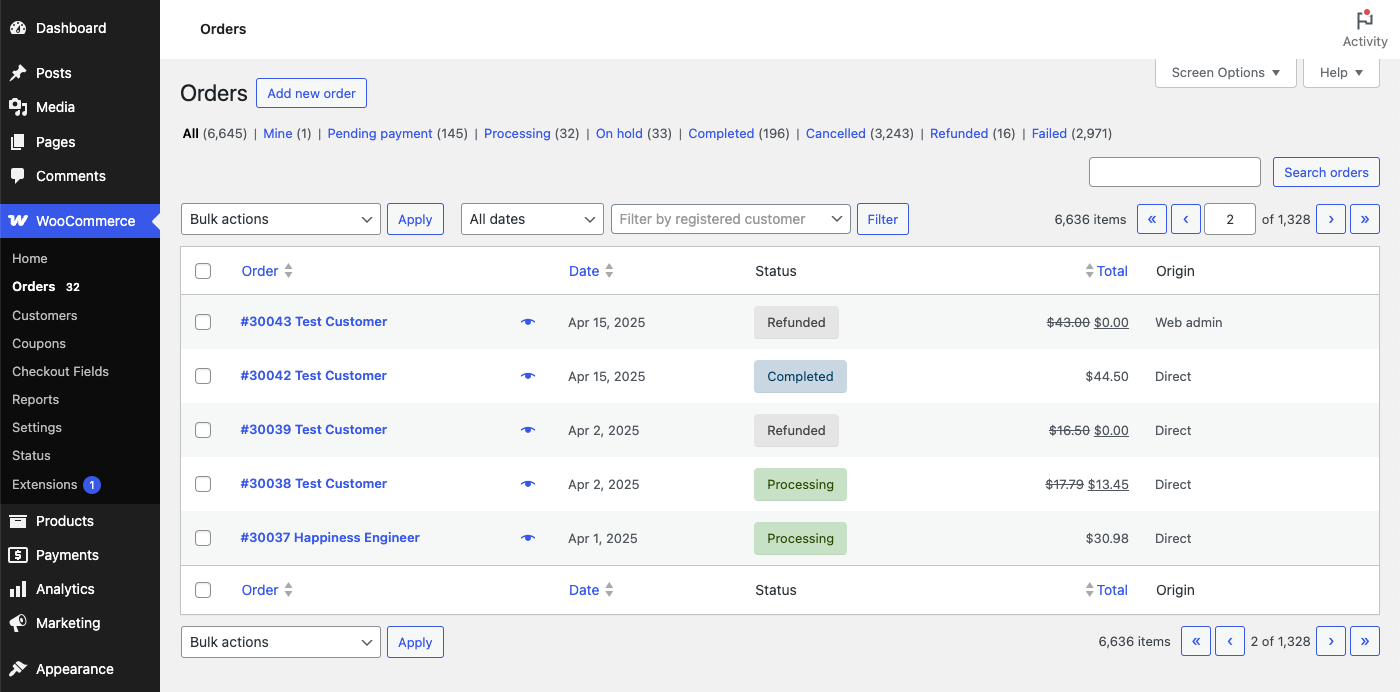
A handful of orders is easy enough to manage in this view. But, as orders grow, being able to only display a handful of orders in one go becomes a bit problematic. Luckily, the WooCommerce order management system comes with built-in solutions to help you navigate and manage your orders:
- Filters — There is a dropdown menu that lets you view orders by status, so you can see all your orders at any specific stage you want to check.
- Search bar — If you need to find a specific order, you can use the search bar and locate it by customer name, order number, or other relevant keywords.
- Bulk actions — If there’s an action that you need to perform and would like to do it in one go, you can select multiple orders and do so, allowing you to change statuses, send emails, or bulk delete orders.
- Column sorting — Clicking on the headers themselves (assuming that they have the up and down triangles) lets you rearrange the table by dates, orders, or totals.
Managing and Creating Individual WooCommerce Orders
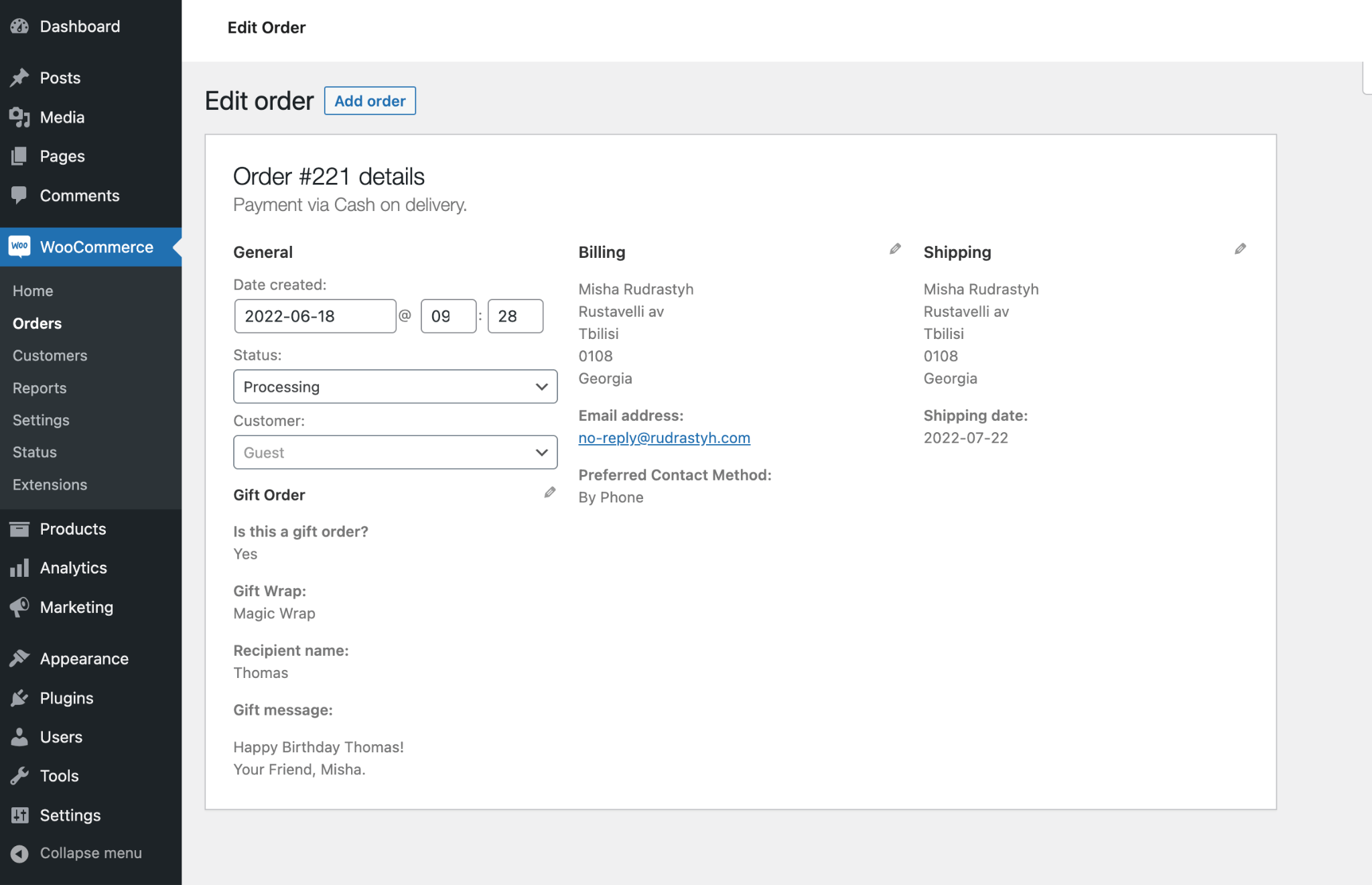
When you’re in the Orders screen and looking at this table, you can select an order and open the Edit Order page (opening an order can be done by clicking anywhere on the row of the order you wish to see).
With the individual order opened, you’ll be able to see:
- Items purchased
- Amount paid
- Billing and shipping addresses
- Any notes the customer added at checkout
If, for any reason, you need to update the order, almost all the information you’ll see can be changed, so you can correct a wrong address or update order quantities, including:
- Line items
- Shipping costs
- Discounts
- Custom fees
If, for any reason, you need to create an order manually, for example, when making bespoke products and coordinating with a customer on a custom build, you can do so via the Orders screen:
WooCommerce > Orders > Add Order
This will open a new order for you to manually enter order details.
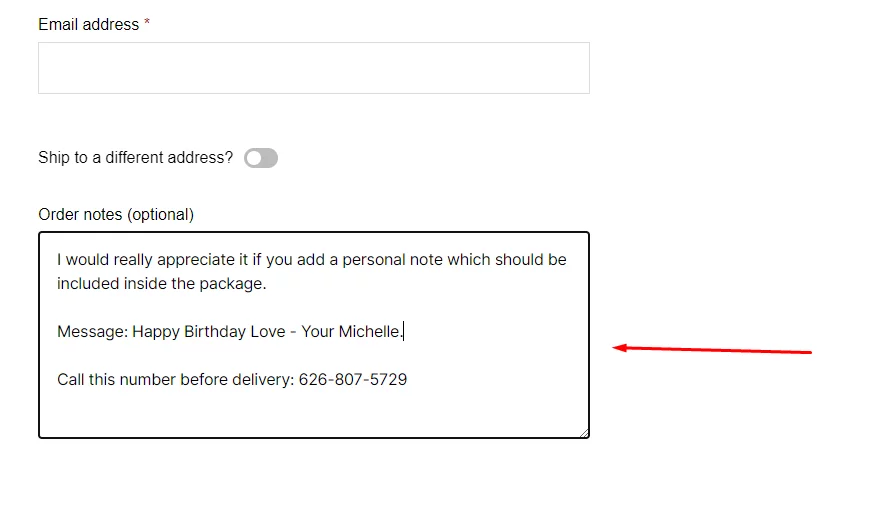
As you work on this order and update its statuses, WooCommerce will automatically send email updates to the customer (as it would if the order had been created automatically). If you need to add any additional information, either for your team or for the customer, you can do so by leaving manual order notes within the sales order.
Facilitating Order Payments
Not every order is paid immediately, and WooCommerce includes several native ways to collect payment afterward without additional plugins.
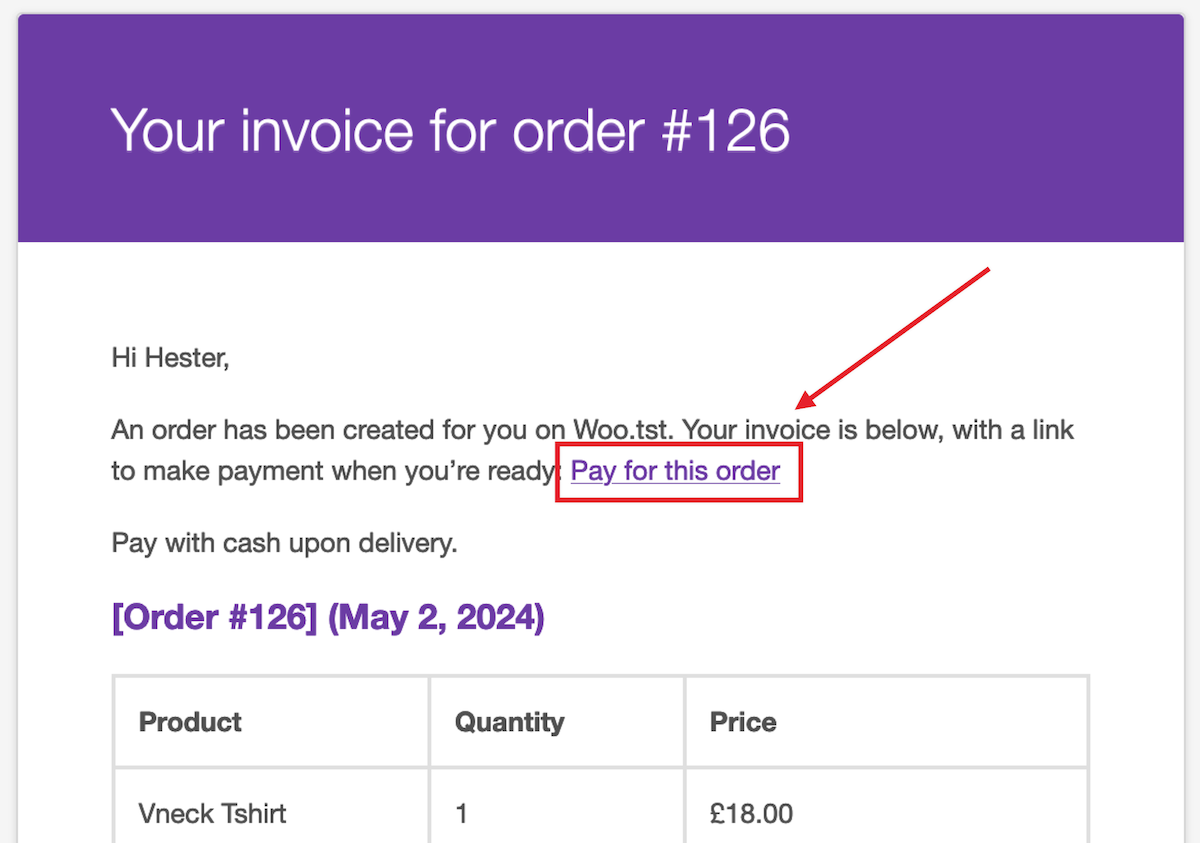
From the Order actions dropdown on a Pending order, selecting "Send order details to customer" emails the customer an invoice with a "Pay for this order" button. Clicking it takes them to a secure payment page where they can complete checkout using any enabled gateway, such as Stripe or PayPal.
Alternatively, customers with store accounts see a list of their orders when logged in, with a Pay button next to any unpaid orders. This is a hands-off option that works well for repeat customers managing their own orders.
Finally, if you need to manually send a payment link, opening the order and scrolling to Order Notes reveals a note containing the customer's personal payment URL, which can be copied and shared directly, for example over live chat, when a customer wants a faster route to payment.
Removing Personal Data from Orders
As a store accumulates customer names, addresses, and emails, WooCommerce provides tools to help stay compliant with privacy regulations like GDPR by anonymizing or removing that data.
Note: If you would like to do this via bulk editing, the option must first be enabled:
WooCommerce > Settings > Accounts & Privacy
Then check "Allow personal data to be removed in bulk from orders."
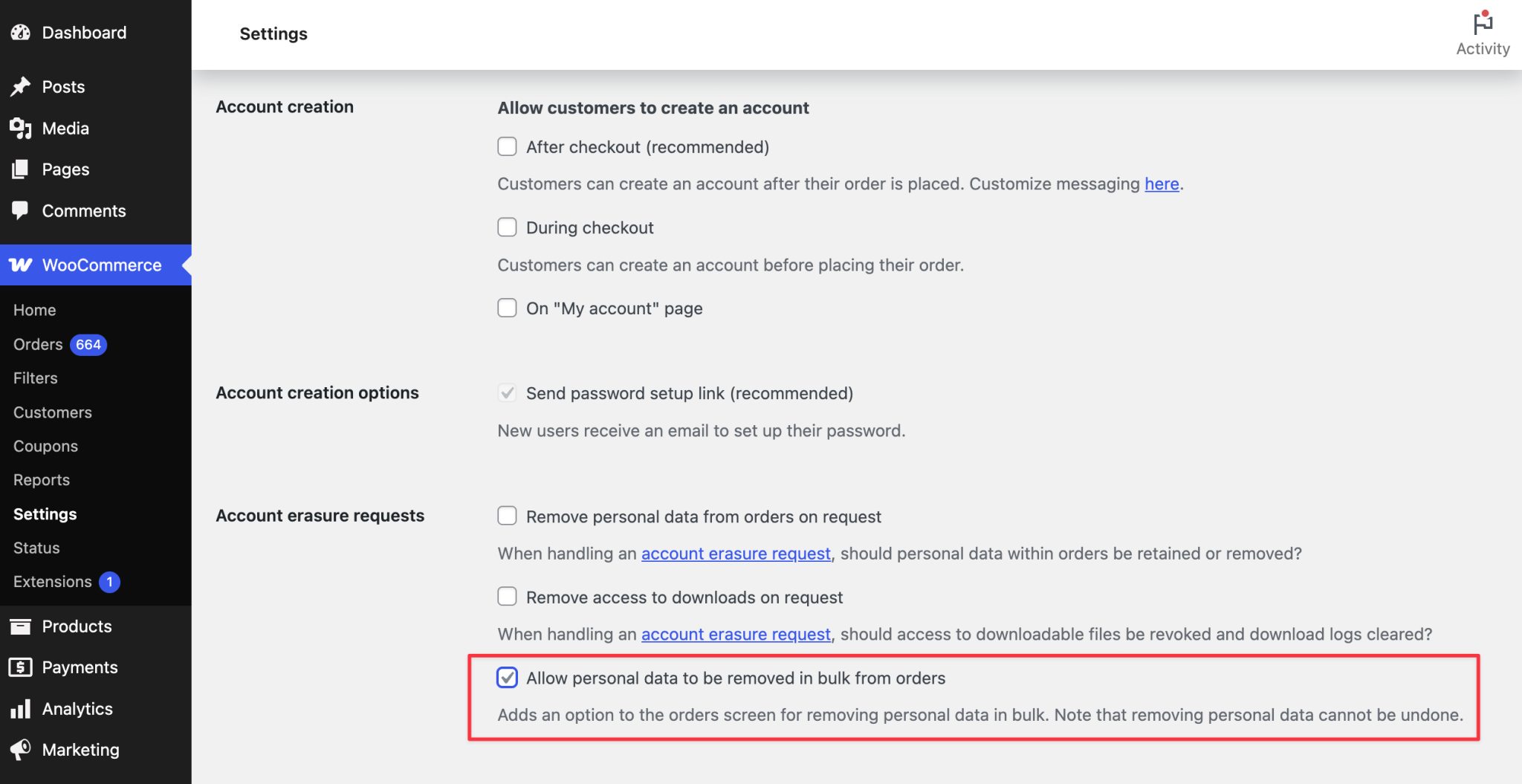
Once enabled, orders can be selected on the Orders screen and processed through:
Bulk Actions > Remove personal data > Apply
WooCommerce anonymizes the selected orders: the customer becomes "Guest," names and billing details display as deleted, the email is replaced with deleted@site.invalid, and the phone number becomes 000 000 0000.
Order totals, products, and reporting data remain intact, so sales stats aren't affected.
The same settings page includes a Personal Data Retention section, where you can set a time frame, such as 30, 60, or 365 days, after which WooCommerce automatically anonymizes personal data on Completed or Refunded orders without any manual work.
When a customer asks to have their data deleted, this is handled through:
Tools > Erase Personal Data
Entering their email sends a confirmation request, and once approved, clicking "Erase Personal Data" strips their name, email, and address from the order. The order itself still appears in reports, just without identifying details.
Where Native WooCommerce Order Management Falls Short
WooCommerce's built-in tools work well for a low-volume shop, but structural gaps surface once failure rates rise or order volume and team size scale up.
These fall into two categories:
- Technical failures that interrupt individual orders
- Structural limitations in how WooCommerce handles fulfillment, inventory, and team workflows over time
Common Causes of Order Failures
Payment processing is the most frequent failure point.
Gateways like Stripe or PayPal can break down due to expired API credentials, SSL issues, timeouts during high traffic, currency mismatches, or test credentials left active in a live environment. Strict, provider-specific formatting requirements for names, addresses, and card details (even more complex for international stores) also cause transactions to fail with generic error messages.
Another issue WooCommerce is plagued by is plugin conflicts.
The average store runs 15–20 plugins, and when several modify checkout simultaneously, they can produce JavaScript errors, broken form submissions, or scripts that fail to load, any of which can stop an order from saving.
Server and database limitations add a third layer — things like table fragmentation and high concurrent connections can cause checkout to time out, often at the exact moments when a store can least afford it (sales events, product launches). This can all be brought about by issues such as:
- Insufficient PHP memory
- Restrictive execution time limits
- Database bottlenecks
Shipping, Fulfillment, and Inventory Gaps
WooCommerce has no native carrier integration (UPS, FedEx, DHL), so labels are generated manually.
Tracking numbers live only in plain-text order notes rather than structured fields. Orders can't be split across multiple shipments, and notification emails lack branded tracking pages.
Inventory is similarly limited to a single global stock count per product. This breaks down for multi-warehouse operations, since there's no visibility into which location holds stock and no way to route orders to the nearest fulfillment center. Because inventory doesn't sync in real time across external channels, high-traffic sales can lead to overselling.
Workflow and Team Collaboration Constraints
Order management stops being a single task once more than one person touches it.
Owners, fulfillment staff, support, and accounting all pull from the same WooCommerce data, but WordPress wasn't built as a collaborative workspace. As volume and team size grow, friction appears not from missing features but from workflows breaking down around them.
Other issues include the following:
- Rigid statuses — limited to seven core stages, with no native sub-stages for custom pipelines
- Manual, one-by-one updates — status changes and address corrections require individual edits, turning routine work into hours of repetition at volume
- Minimal bulk tools — pushing teams toward CSV exports or fragile workarounds during spikes
- Collaboration risk — the only way to add access is to grant full WordPress admin, which raises security exposure
- Stale exports — CSVs go outdated the moment they're pulled
- Compounding errors — small mistakes scale into refunds, delays, and support tickets
Two common symptoms of these constraints are orders stuck in Processing because completing them still requires a manual status change, and missing customer emails, usually traced to a host blocking mail functions rather than any WooCommerce fault.
Monitoring and Diagnosing Failures
Because many of these failures occur silently, effective troubleshooting depends on proactive monitoring.
Transaction log analysis combines WooCommerce order logs, payment gateway records, server error logs, and WordPress debug logs into one view of the customer journey. Front-end error tracking fills the gap that server logs miss, catching JavaScript errors and form failures — often the only way to spot a specific product combination that consistently breaks checkout.
So, this begs the question: if WooCommerce starts to crumble when the business scales or for more complex workflows, what can businesses do to overcome this?
Using a WooCommerce Order Management Plugin or Third-Party Solutions
.jpg)
For stores that have outgrown WooCommerce's native limitations, third-party platforms connect the storefront directly to warehouse, production, and fulfillment operations.
Tools like Digit import WooCommerce orders, product data, and customer details automatically, typically within minutes of an order being placed, giving warehouse and production teams immediate visibility into what needs to ship or be built without manual exports or spreadsheet copy-paste.
Beyond basic order visibility, these WooCommrce order management platforms are built for sellers managing more complex operations that the native bulk tools can't support, like:
- Assembling products
- Running custom builds
- Handling high-order volumes
Orders can be converted into production schedules, purchase orders, and manufacturing orders, with support for multi-level bills of materials management, batch and serial number tracking, and real-time job progress from the shop floor.
Most solutions in this category use a one-way sync, pulling WooCommerce data in without pushing inventory changes back to the store, so store owners retain a unified view of sales activity alongside internal stock and purchasing without duplicating data entry. For merchants scaling beyond what WooCommerce's core toolset can handle, this turns the storefront into a single node in a larger operational system rather than an isolated sales channel.
Looking for a WooCommerce order management system that can keep up with your manufacturing and distribution? Give Digit a try! Head over to our website and book a call, and we’d be happy to give you a hands-on tour of Digit so you can see firsthand how it can benefit your business.